Atlas injects an SSH public key into each instance at first boot. You hold the private key and use it to log in — no passwords involved.
There are two ways to set this up: bring your own key (recommended) or have Atlas generate the pair for you.
Option A — Bring your own key (recommended)
If you already SSH into servers from this machine, you almost certainly have a key already at ~/.ssh/id_ed25519 (or ~/.ssh/id_rsa on older setups). Use it.
If you don’t have one yet:
ssh-keygen -t ed25519 -C "atlas-key"
# Press Enter for the default file path (~/.ssh/id_ed25519).
# Set a passphrase — recommended for any key that lives on a laptop.
You now have two files:
~/.ssh/id_ed25519— the private key. Never share it. If a private key ever leaks, treat every server it accesses as compromised.~/.ssh/id_ed25519.pub— the public key. This is what you give to Atlas.
Upload the public key
The Console form is the simplest path; CLI and Terraform are equivalent.
Console
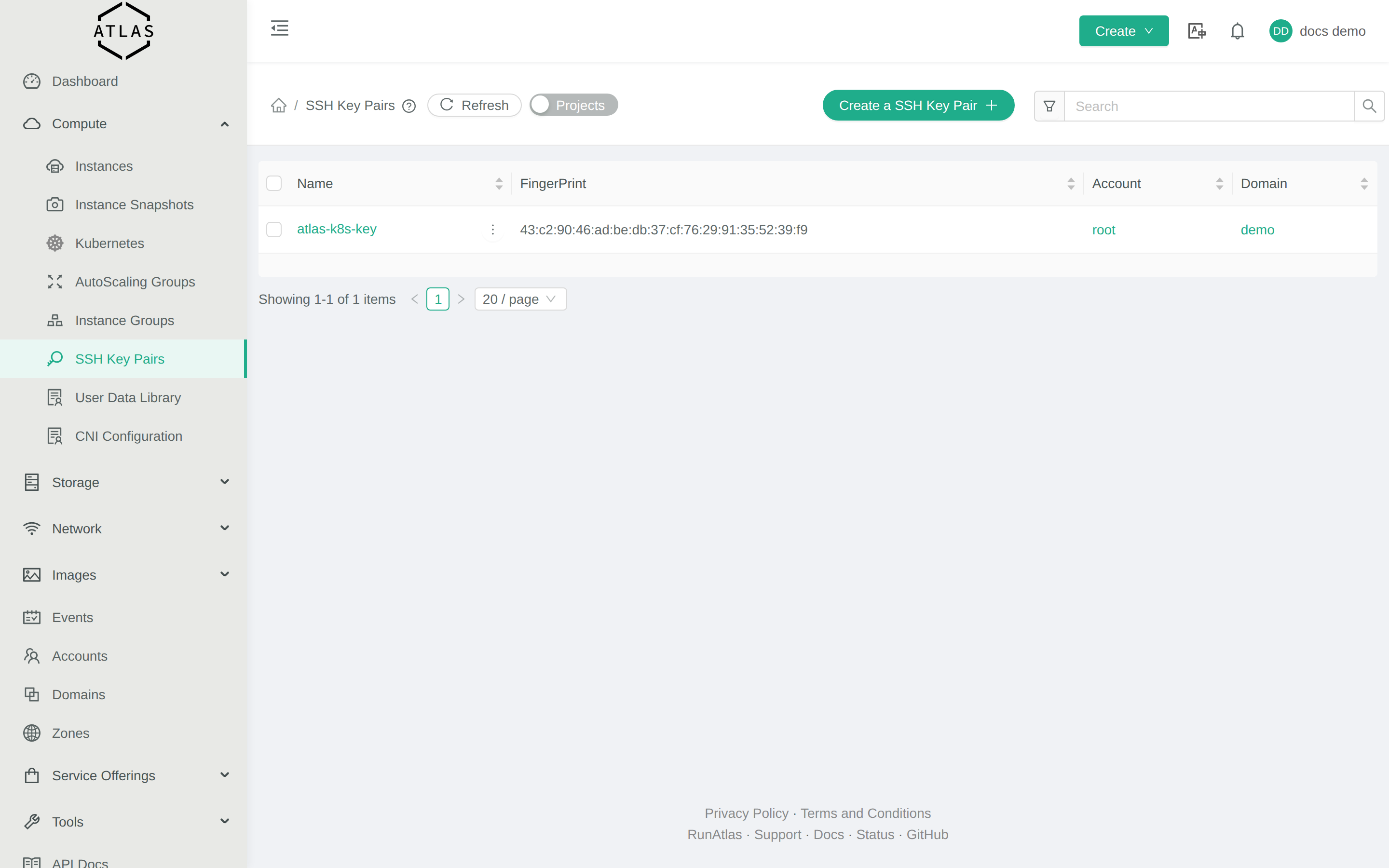
Compute → SSH Key Pairs → Create a SSH Key Pair. Paste your public key, name it (e.g. laptop), save.
CLI
cmk register sshkeypair name=laptop publickey="$(cat ~/.ssh/id_ed25519.pub)"Terraform
resource "cloudstack_ssh_keypair" "laptop" {
  name       = "laptop"
  public_key = file("~/.ssh/id_ed25519.pub")
}
Option B — Let Atlas generate the key pair
Useful when you don’t have a local key yet and want one auto-generated. Atlas creates both halves and hands you the private key as a download — Atlas does not keep a copy. If you lose the download, the key is gone.
Console
Compute → SSH Key Pairs → Create a SSH Key Pair. Leave the Public Key field blank. Click Create. Your browser downloads the private key file. Move it to ~/.ssh/, then:
chmod 600 ~/.ssh/your-downloaded-key.pemCLI
cmk create sshkeypair name=mykey > mykey.json
jq -r '.keypair.privatekey' mykey.json > ~/.ssh/mykey.pem
chmod 600 ~/.ssh/mykey.pem
The private key is in the JSON response under keypair.privatekey — it is the only chance you have to save it.
Use the key when launching a VM
Pass the name of the registered key on the deploy virtualmachine call:
cmk deploy virtualmachine ... keypair=laptopIn the Console’s New Instance wizard, the SSH Key Pair field is in step 4 alongside Compute Offering and Network.
Common failures
- I uploaded my private key by mistake. No real damage — regenerate the key pair locally (
ssh-keygenagain), upload the new public key, delete the wrong one in the Console. The “private key in the public-key field” upload won’t authenticate any real SSH session. - VM doesn’t accept my key after upload. Did you pass
keypair=...ondeploy virtualmachine? If not, the key wasn’t injected at boot. The VM has no way to authenticate you and Ubuntu/Debian/AlmaLinux templates disable password SSH. Destroy and re-launch with the correctkeypair=. Permission denied (publickey)from SSH. The cloud-init step that injects the key may have failed. Open the VM’s console via Compute → Instances → click the VM → View Console and check/var/log/cloud-init-output.log.
See Can’t SSH to a VM for the full troubleshooting flow.